Creative Studio
Make images, edit photos, analyze documents and videos, and plan your go-to-market.
What it is
Creative Studio is your toolbox for content.
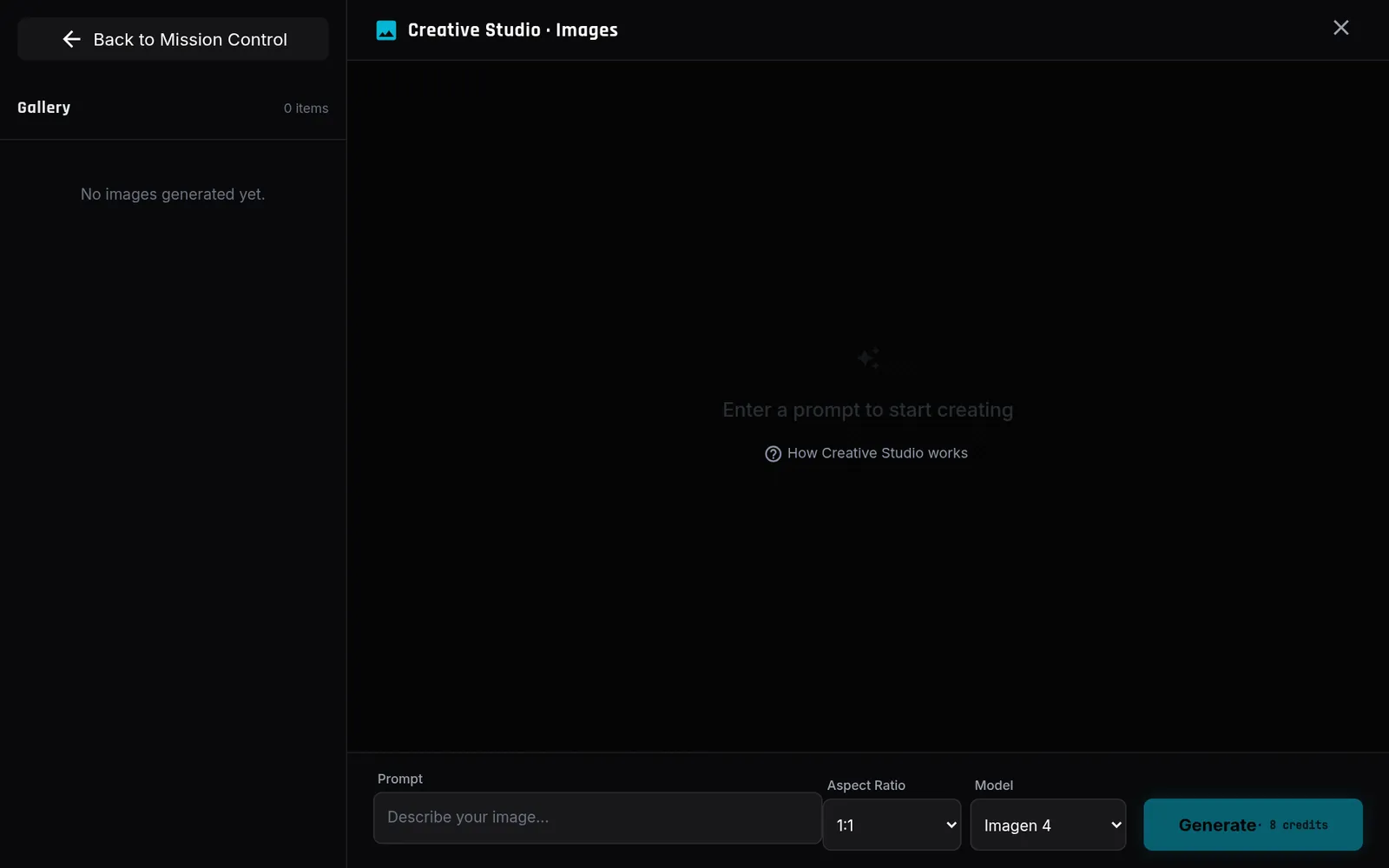
- Tap Creative Studio in the left menu to open the Image Studio, with a Gallery of the images you've made.
- For the other tools, tap them under Creative studio near the bottom of Mission Control.
The tools
| Tool | What it does | Credits |
|---|---|---|
| Images | Describe a picture and get a new image, like a logo idea or social post. | 8 |
| Photo edit | Upload a photo and say what to change. | 8 |
| Analyze a doc | Upload a document (under 6.5 MB) for a summary and insights. | 10 |
| Video to content | Upload a short video (under 7 MB) to get reel ideas, a transcript or ways to repurpose it. | 15 |
| Go-to-market | A plan for how to launch and find your first customers. | 15 |
| Video (Beta) | Turn a description into a short video clip. | Shown on the button |
The cost is always shown on the button before you start.
Why it matters
Good content helps people find and trust your idea, and you don't need a designer to get started.
Steps
- Open Creative Studio and pick a tool.
- Describe what you want, or upload your file. For images you can also pick a shape (aspect ratio) and a model.
- Tap the button to create. Download or copy what you like.
Tips
- Be specific: colors, mood and who it's for all help.
- Video tools have size limits. Trim long clips first.
What's next
See every credit cost.